Here is what each version added. The full list, including fixed problems, is behind the link at the
bottom of each version. Once IeumOffice is installed, the app tells you when a new version is out.
0.12.12
PDF to Hangul, and FreeMind mind maps
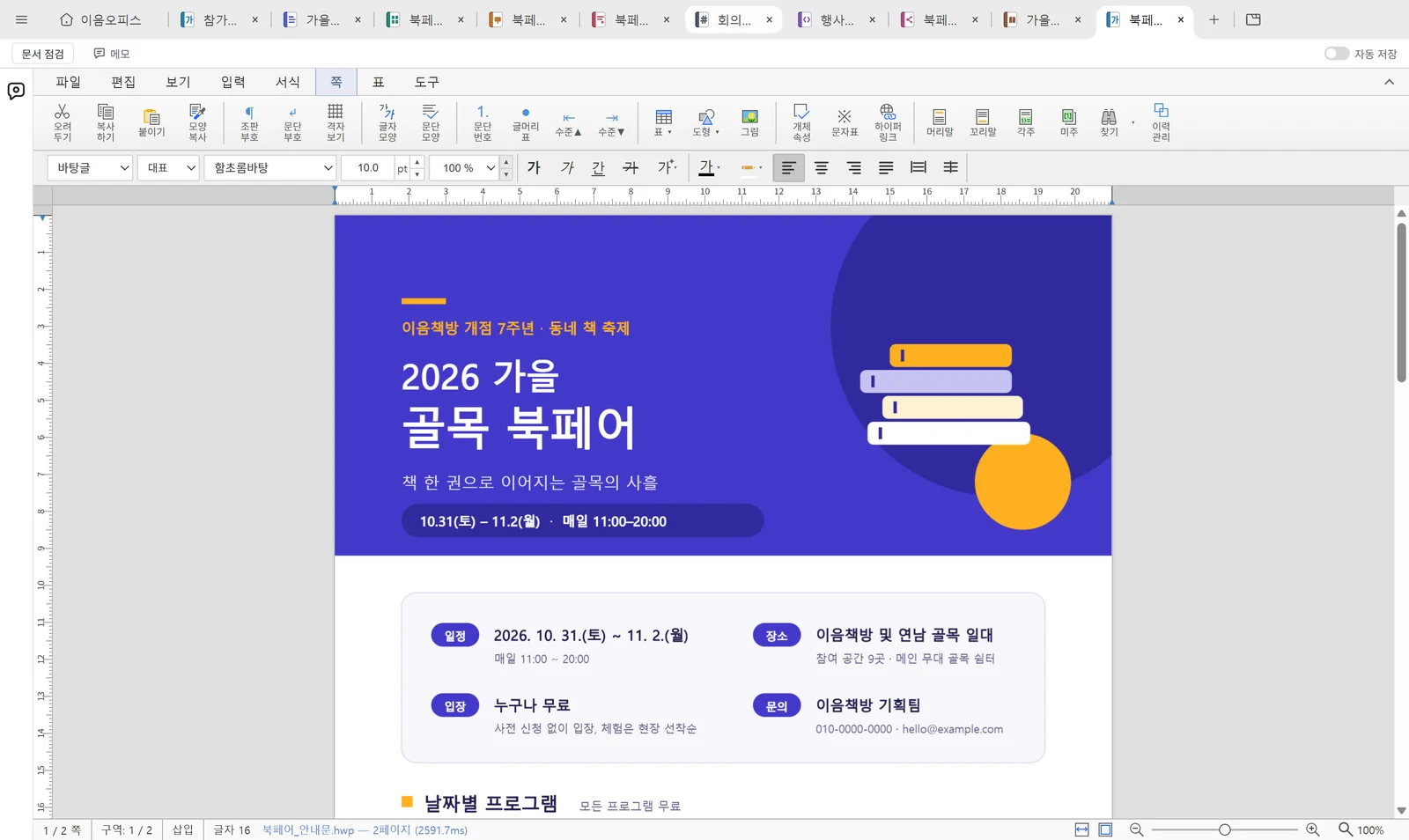
In the PDF editor, press "PDF to HWP" to bring a PDF into a Hangul (HWP) document and edit it. The mind
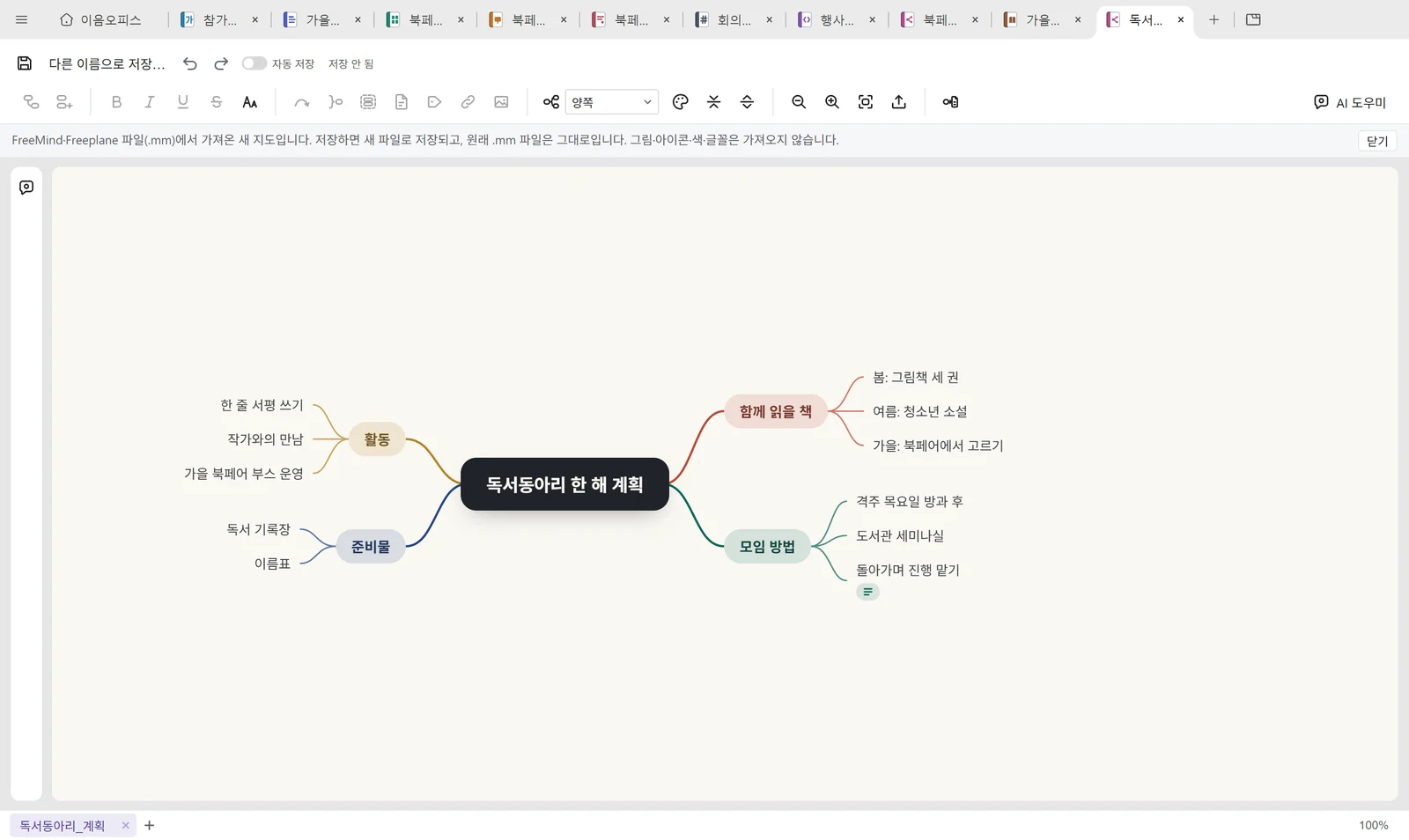
map editor also opens mind map files (.mm) made with FreeMind or Freeplane. Saving an Excel file made
with Hancom Hancell no longer fails after you change its formatting.
PDF to Hangul In the PDF editor's "PDF Converter" menu, press "PDF to HWP" and the PDF opens in a new Hangul tab. In the "Import PDF" window that follows, press "Import": the PDF's content becomes a Hangul document, which you edit and then save as a Hangul file. The original PDF does not change. This was tested with PDFs that contain text; PDFs made by scanning paper have not been tested yet.
FreeMind and Freeplane mind maps Open a mind map file (.mm) made with FreeMind or Freeplane and it comes in as a new map. When you save, an XMind file (.xmind) with the same name appears in the same folder, and the original .mm file does not change. Pictures are not brought in; only their names stay, as topic titles.
Character count in Hangul
The status bar at the bottom left of the Hangul editor shows the character count, and when you select a block it also shows how many characters are selected. Ctrl+PageUp goes to the start of the document and Ctrl+PageDown to the end.
PDF zoom and similar fonts
Under "On open" on the PDF View tab you can now choose 100%. Files you zoomed in or out yourself remember their own zoom. When you edit PDF text with "Keep original font", characters missing from the font embedded in the document are drawn with a similar font installed on your PC. So when you edit a Korean PDF set in a serif (Batang or Myeongjo) font, the edited part no longer turns into a sans-serif font.
Fonts for slides the AI makes
Under "AI slide fonts" in Settings → General, choose the default fonts the AI uses when it makes slides. Pick Auto, Sans serif, Serif or Serif titles, and set which fonts to use for sans serif and serif. With the Korean display language the starting choice is sans serif (Pretendard).
Choosing which AI to use
Press "Don't use in this app" on the Claude or Codex card in Settings → AI, and IeumOffice will not run that program. The program and its sign-in stay as they are, so you can keep using it in a terminal; press "Use again" to go back. When you start PDF translation, AI page reading or AI highlights, you choose the AI to use in the confirmation window.
Heavy document warning
The "Document is using too many resources" window now has "Don't Remind Again". Press it and you won't be asked again while that document is open. On PCs with a lot of memory this window appears less often.
Also fixed: saving always failed after changing cell formatting in an Excel file (.xlsx) made with Hancom
Hancell; Excel and CSV files would not open on older Linux such as Ubuntu 20.04; a black console window
flashed every time you opened a PDF on a Windows PC where Codex was installed with npm; and in Hangul
documents over 30 pages, AI undo also undid text you had typed yourself.
A diagram editor, and mind map text and line formatting
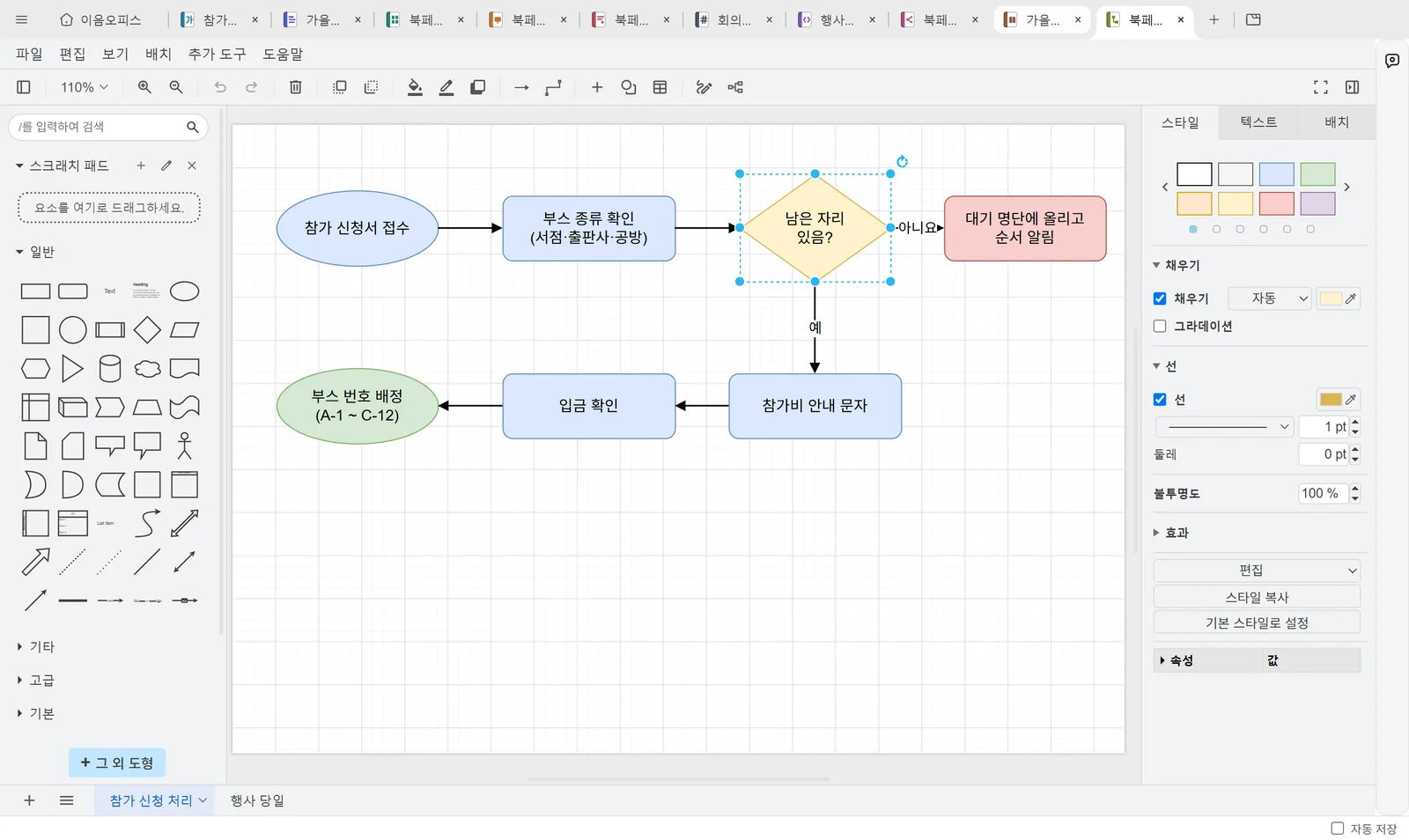
A new diagram editor opens draw.io files (.drawio) in a tab, so you can edit flowcharts and structure
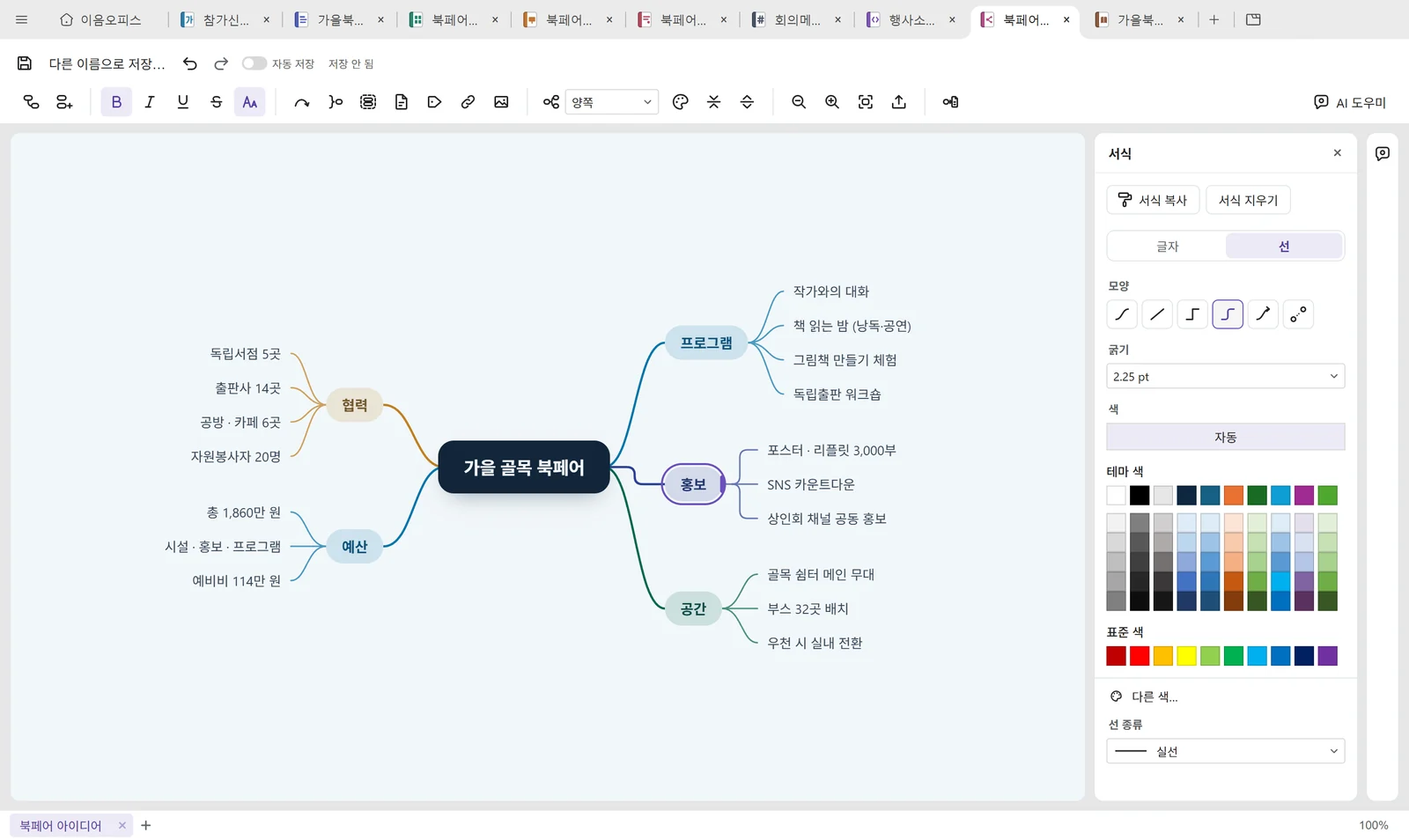
diagrams. In mind maps you can change the look and color of topic text and branch lines. PDF and EPUB
translation now has "Plain language", which rewrites difficult text in plain words.
Diagrams Open a draw.io file (.drawio, .dio, .drawio.svg, .drawio.png) and it opens in a tab; when you save after editing, it is saved in the format you opened. Make a new diagram from "Diagram" on Home. Drag shapes from the shape library (Ctrl+Shift+K), change colors and text under "Style" and "Text" in the format panel on the right, and split pages with the tabs at the bottom. Export to PNG, SVG or PDF, or print, from the File menu. Open a Visio file (.vsdx) and it comes in as a new diagram; the original Visio file does not change. The drawing screen runs only on this PC and sends nothing over the internet unless you use the AI panel. You can ask the AI panel beside it to draw a flowchart or an org chart, and undo what the AI drew with Ctrl+Z.
Mind map text and line formatting Select a topic and press "Format" on the toolbar to open the format panel on the right. Under "Text" you change bold, italic, underline, strikethrough, text color, size, font and alignment. If you select just a few characters while editing a title, bold, italic, underline, strikethrough and text color apply only to those characters. Under "Line" you change a branch line to a curve, straight line, elbow line and so on, and choose its width, color and style, such as solid or dashed. Select a relationship, a summary bracket or a boundary to change its shape and color in the same panel. Drag the handle on a topic's edge to change the box width, and attach a picture to a topic with "Insert picture" on the toolbar. Some formatting, such as underline or box width, may look different in XMind.
Plain language
Choose "Plain language" under "Show" in PDF "Translation side by side", under "Mode" in the "Translate document" window, or in the EPUB translation window, and the AI rewrites the text in everyday words and short sentences. You can also rewrite it in the same language instead of translating it. In Word and Hangul, select text and press "Explain in plain words" in the right-click menu; the explanation appears in the AI panel and the document does not change. If you choose plain language in PDF "Translate document", the result comes out as a Markdown or EPUB file.
Choosing a format in Save As
In the "Save As" window's file type list, pick any format that editor can export: PDF, HTML, Markdown and page pictures (PNG) for Word, PDF for Hangul, CSV and PDF for Excel, and Word, PowerPoint, Excel, EPUB, PNG and more for PDF. This only makes a copy; the open document stays on its original file, and the next "Save" saves to the original file. Mind maps can also be exported as SVG pictures.
Mac app updates (beta)
For a Mac app kept in the Applications folder, press "Update Now" → "Restart & Install" in the update window and it changes to the new version and reopens. This first arrived in 0.12.11, so this one time you need to download the 0.12.11 installer (dmg) and install over the old app. The app updates itself from the next version on.
Fonts in Hangul that aren't on this PC
If a font used in the document isn't on this PC, "Not on this PC" appears next to it in the font menu, and when the font of the character at the cursor is missing, the font box gets a dotted underline. When you open such a file, a notice bar tells you once. Even if the screen shows a different font, the file keeps the original font name when saved.
PDF and Excel
The PDF text selection bar now has yellow, green and sky-blue highlighters; right-click a pen to change its color. Turn on the "Hand tool" next to "Fit page" and drag to move the view. In Excel, copy a range of cells and paste it into a messenger or slide editor that takes pictures, and it goes in as a picture that looks just like the cells.
Also fixed: in 0.12.10 every password-protected PDF ended with "Failed to open file"; PDF signatures were
always red; opening an .xls file in Excel lost center alignment and borders; and ⌘C and ⌘X did not work in
the Hangul editor on Mac.
Pasting cells into Hangul tables, and a slide Selection Pane
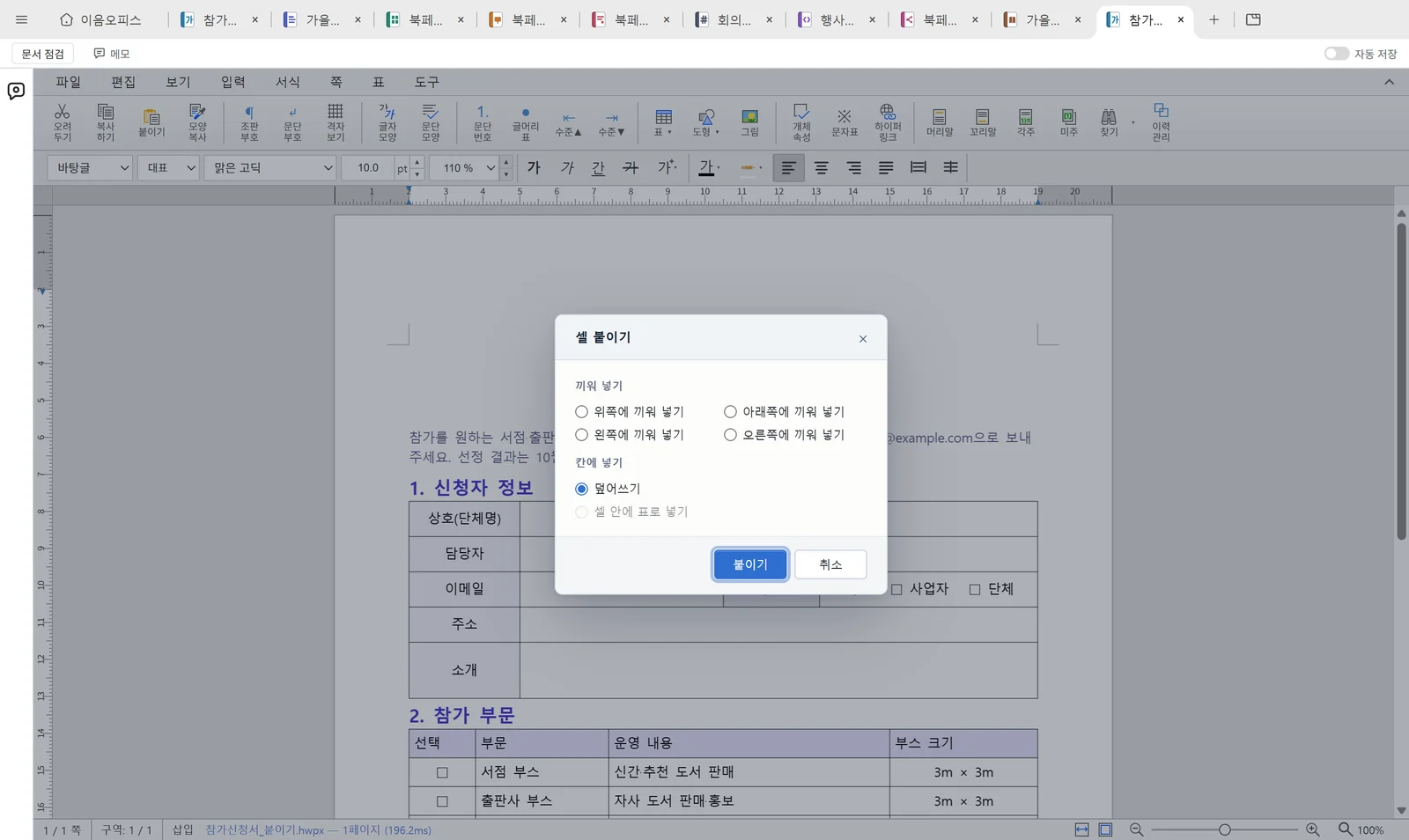
When you paste cells copied from another table into a cell of a Hangul table, you can choose whether to
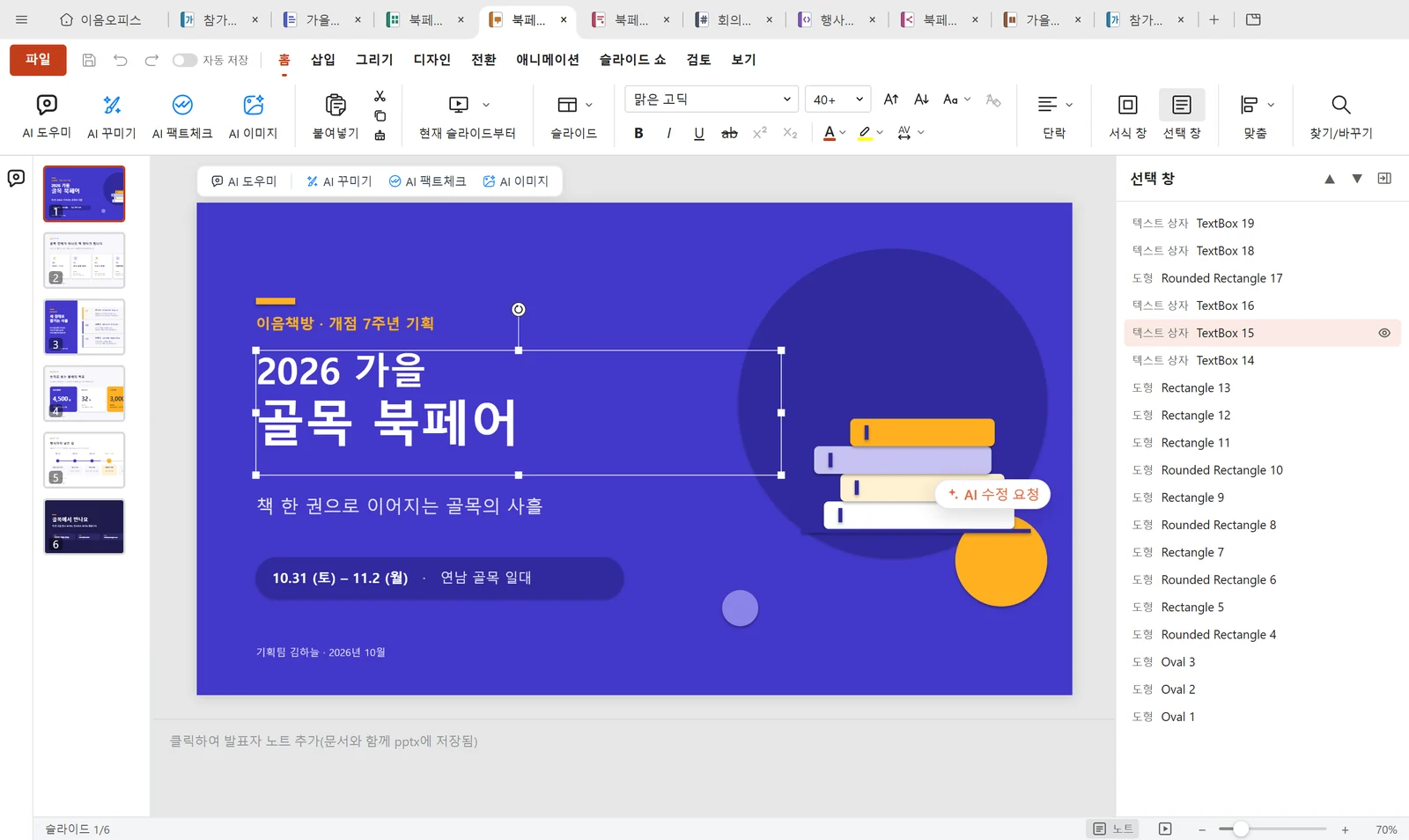
overwrite or to insert new rows or columns. Slides gained a Selection Pane, repeat with F4, an
eyedropper, and merge shapes. In the AI panel you can choose how deeply the model thinks before it
answers.
Paste Cells Put the cursor in a cell of a Hangul table and paste cells copied from Excel or another table, and the "Paste Cells" window appears. "Overwrite" replaces the content from the cursor's cell onward, as many cells as you copied. "Insert above/below" makes new rows, and "Insert left/right" makes new columns. Up to 0.12.9, pasting this way put everything you copied into a single cell. Paste into body text outside a table and you get a table with its merged cells intact. Triple-click text to select the whole paragraph, or double-click and drag to select word by word.
Slide Selection Pane Press "Selection Pane" on the Home tab, or Alt+F10, and the text boxes and shapes on the current slide are listed. Whatever you click in the list is selected, so you can pick things hidden behind other shapes that are hard to grab with the mouse. Hide or show them with the eye button, and double-click a name to change it. F4 repeats the formatting change or alignment you just made. The eyedropper in the font color and shape fill menus picks up any color you see on screen. Merge shapes (union, combine, fragment, intersect, subtract) joins several shapes into one.
Effort
"Effort" now appears under the model list in the AI panel. Choose among the levels that model takes, such as "Default", "Low", "Medium" and "High". Higher levels answer more slowly and use more of your subscription or API credit. It shows only when the model reports its list of levels: Claude and Codex subscriptions, Anthropic, OpenRouter, DeepSeek and xAI keys, and Ollama.
Hangul table shortcuts
With cells selected with F5, P opens Table/Cell Properties, L and C open cell border and fill (for each cell), B and F open cell border and fill (as one cell), and A opens table auto fill. These are the same keys as in Hancom Hangul. In tables with merged cells, Ctrl/Alt/Shift+arrow keys and H and W now change row and column sizes too. Before, these keys did nothing if the table had even one merged cell.
Excel spell check and password-protected PDFs
Press F7 in Excel to check the sheet's spelling. You can open and edit password-protected PDFs, and the password stays when you save. Under Annotate → Protect you add, change or remove a password. There is also a new feature to make PDF files smaller.
Markdown and mind maps
In Markdown, type [[ to see a list of notes in the folder that holds your notes (the vault); pick one to insert a link to that note. In mind maps, drag a PNG, JPG or GIF picture (up to 10MB) onto a topic to attach it, and remove it from the right-click menu.
Also fixed: in Hangul, a table attached after a paragraph covered the text on the line below; the Hangul
editor needed a separate "Detect local fonts" press before you could use fonts installed on your PC; and
in 0.12.9 the window went white when you opened a scanned PDF.
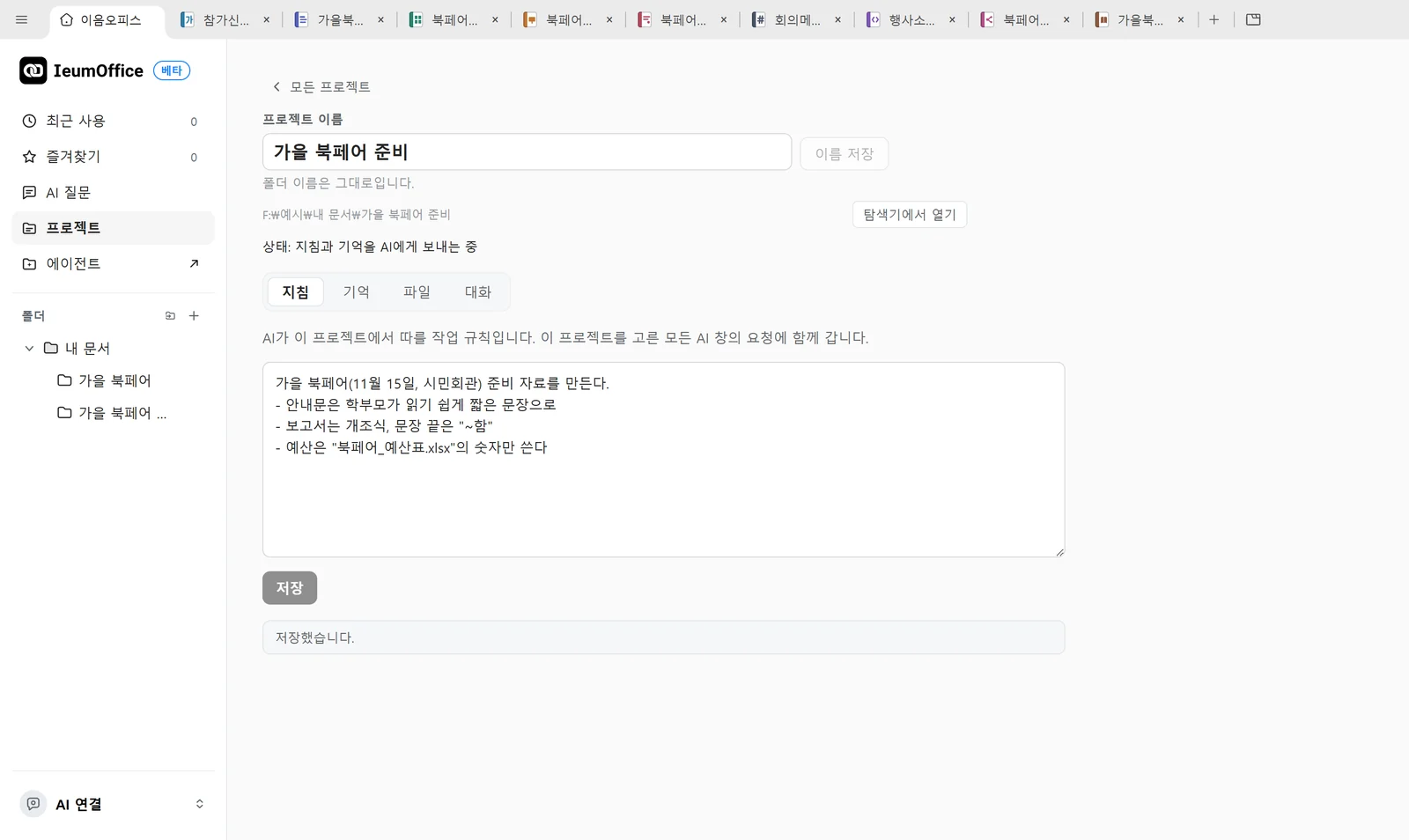
This version focuses on connecting people and their work. Choose a folder as a project, and
instructions, memory and chats build up in that folder; a chat started in Hangul carries on in Slides.
Files you choose in Google Drive also open right away to be edited and saved back.
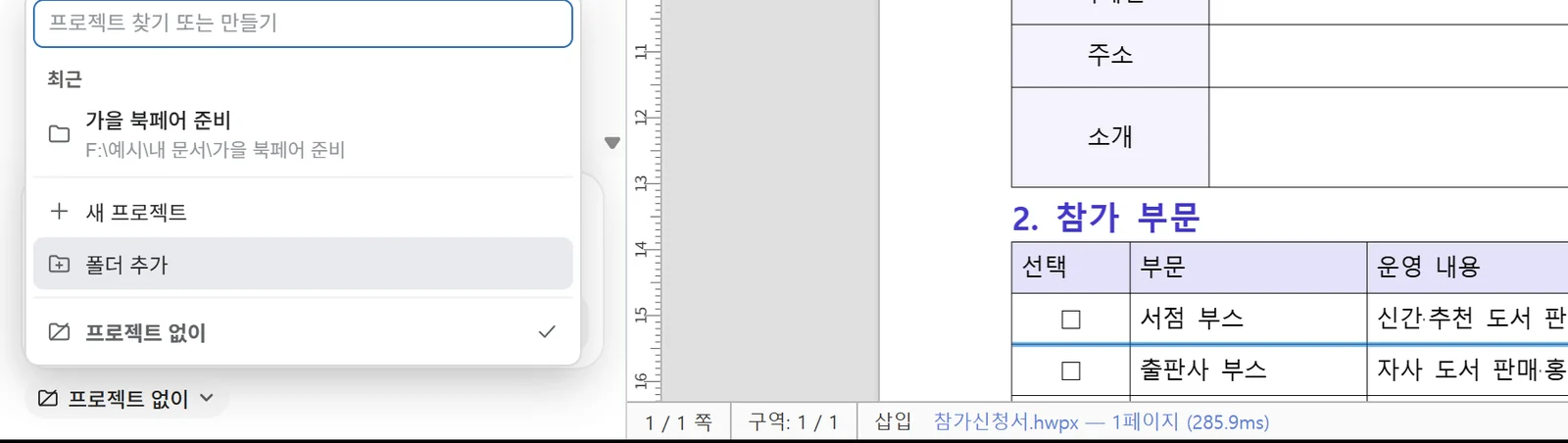
Projects Choose a folder under "Project" below the AI panel's input box, and the instructions written for that folder (for example, "write reports as bullet points") and the memory the AI built up in chats go along with every request. The AI finds and reads files in the folder and saves new documents there. Instructions, memory and chats are kept inside that folder, so they follow it if you move the folder or open it on another PC.
In every editor Choose a project below the input box of the AI panel in every editor: Hangul, Word, Excel, PowerPoint, PDF and the rest. You can make a new one or add a folder you already use, or skip projects and ask about each document separately, as before.
Opening from Google Drive
Connect Drive in Settings → Integrations, press Choose from Google Drive on Home, and Google's picker appears. The files you choose open in tabs and go back up to Drive when you save. The app opens only the files you choose and does not see the rest of your Drive. You can also pick Drive files and attach them in the AI panel.
Hangul print preview and document check
Print (Ctrl+P) now opens a preview first. A new window checks the document against the Korean Ministry of the Interior and Safety's guidelines for administrative documents, and you can change fonts right in that window.
Pasting into Hangul tables in one go
Drag to select several cells of a table and paste, and values copied from Excel go into each cell. Also added: document info that counts characters (Ctrl+Q,I), curly quotes, and converting words already typed into Hanja (Chinese characters).
Excel and PDF
Excel gained What-If data tables and pivot charts; in PDF you can edit bookmarks and compare text with another PDF. With the Korean display language, Excel shows days of the week and dates in Korean.
Also fixed: Hancom Hangul could not open HWPX files made by IeumOffice that contained a table with
vertically merged cells, and pictures and tables copied and pasted in Hangul landed in the wrong place.
EPUB books can be previewed at e-reader size.
Claude sees it through, ChatGPT connects directly.
We fixed the problem where editing documents with a Claude subscription stopped partway or took
several minutes at a time. ChatGPT plans now connect directly in the app without installing the Codex
program. HTML documents can now hold equations you can edit.
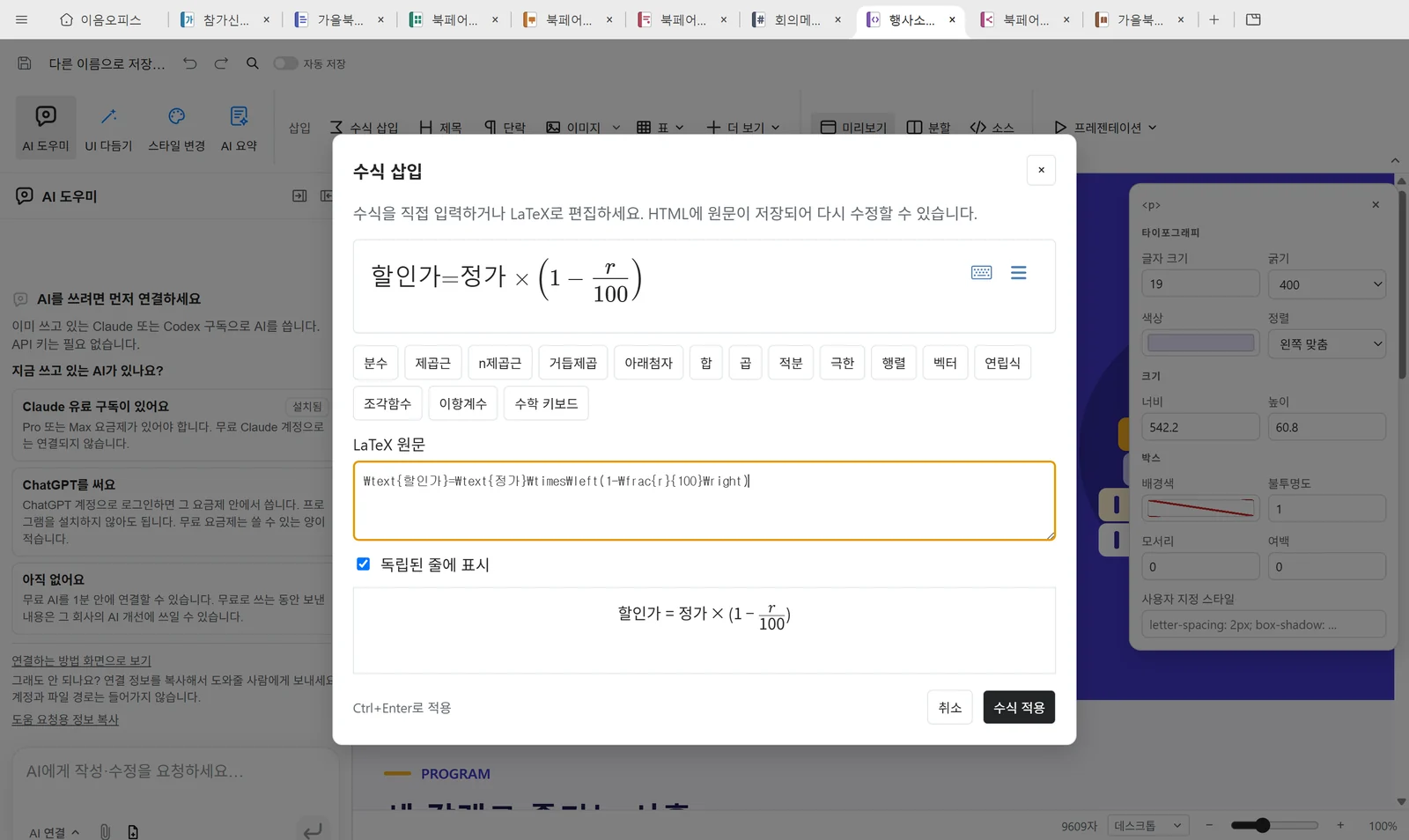
HTML equations Press "Insert equation" on the ribbon to open the equation window. Type directly in the top box or write LaTeX, or insert one of 14 templates such as fractions, matrices and integrals, or use the math keyboard. You can still edit equations after saving and reopening, and they display without an internet connection.
Connecting ChatGPT directly
In the connect guide, choose "I use ChatGPT" and press Continue with ChatGPT, and the ChatGPT sign-in page opens in your browser. Sign in and allow this app to use your plan, and you're done. The steps are in the connection help.
Excel formula bar
Selecting a cell with several lines no longer makes the formula bar grow and push the sheet down. Drag the handle at the bottom to change its height, and that height stays when you select other cells.
PCs that froze on first launch
On PCs with Windows Security's "Controlled folder access" (ransomware protection) turned on, the app froze on first launch with "Not responding" or a gray screen. That is fixed. If the app cannot write to the Documents folder, it saves to IeumOffice under your user folder and tells you once, along with how to fix it.
Command-line-only package (Linux)
A package that installs only the terminal command, without the desktop app, is now released alongside as a beta. Use it to create and read documents on servers with no screen or in an AI agent's workspace. Installation steps are in "Linux (beta)" in the README.
Also fixed: check boxes were drawn too large in Word's equation and table windows, and converting Excel to
PDF with the terminal command left formula cells empty. Pictures attached in chat now go into Excel sheets
too. If you update from 0.12.7, an installation progress window appears for the first time, and when
installation finishes, the app and the documents you had open reopen.
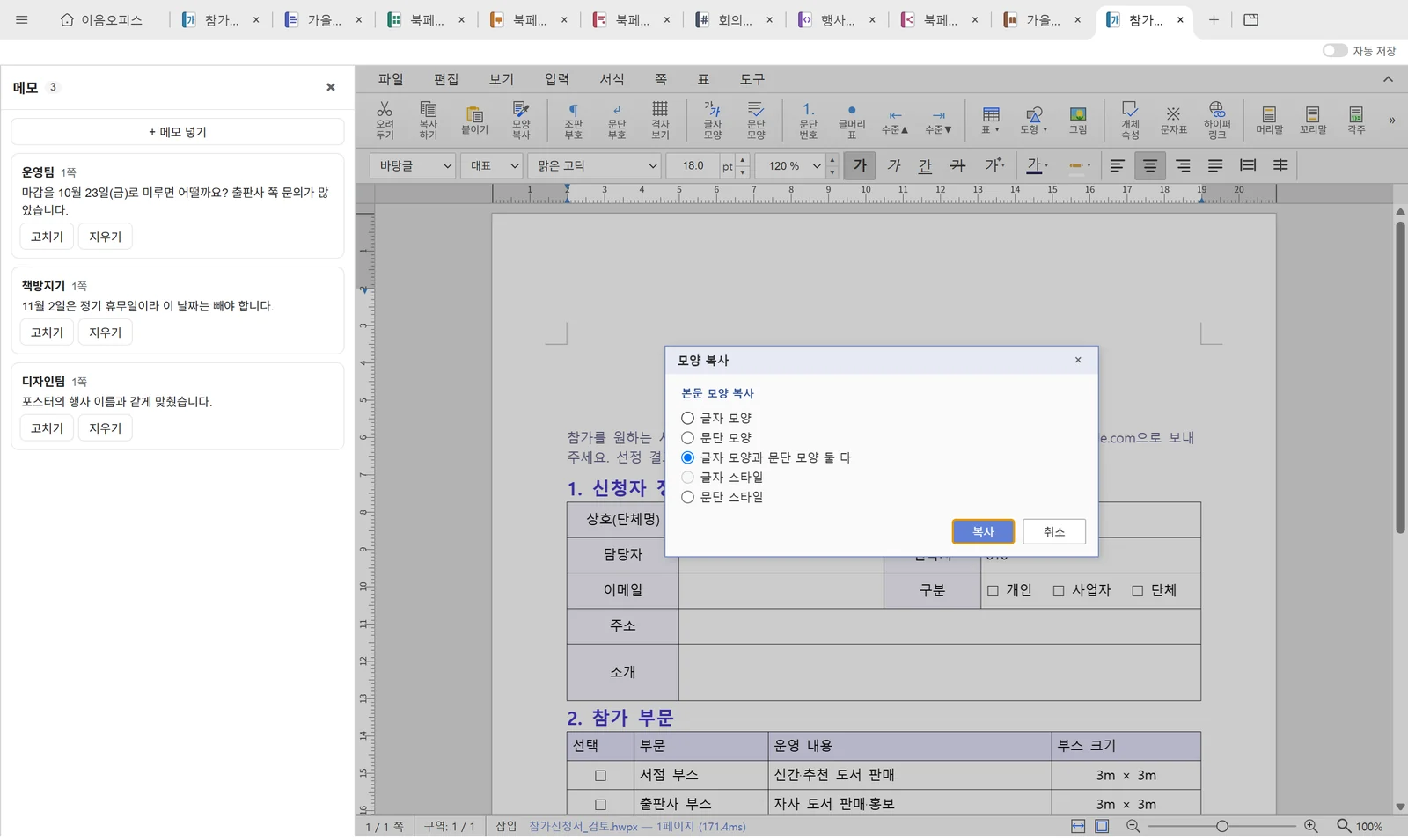
The memo list of a Hangul document now opens in a pane beside the document instead of covering the AI
assistant panel. Ask the AI and it puts pictures into Hangul documents and mind maps too. Excel table
files (.xls) downloaded from school or government websites now open as well.
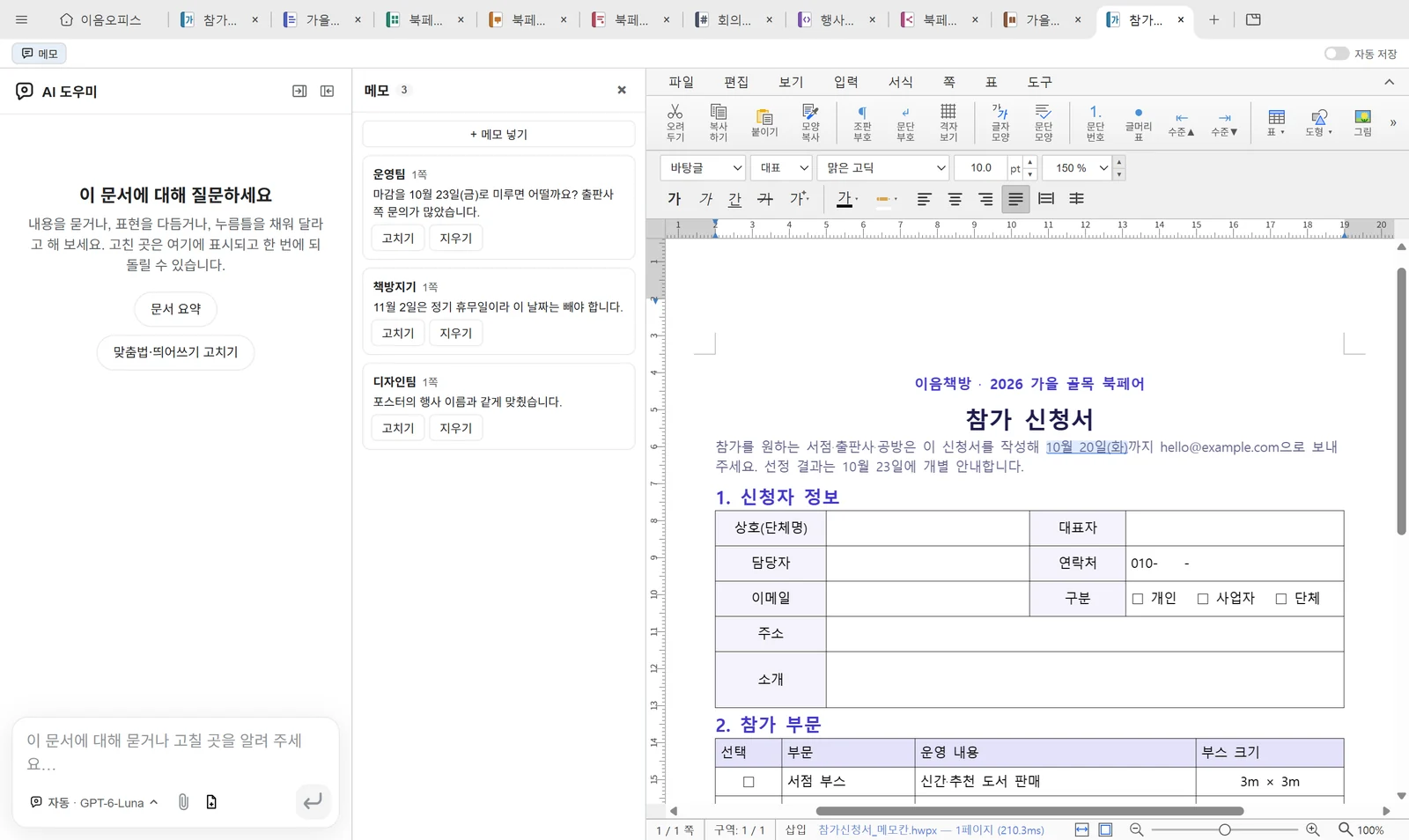
Memo pane beside the document Press the "Memos" button at the top left of the screen and the memo list opens in a pane right beside the document. You can keep it open together with the AI assistant panel. Drag the pane's edge to change its width; a pane you leave open stays open next time.
Pictures from the AI
In Hangul and mind maps too, the AI finds and inserts photos, or puts pictures attached in chat into the document. In Word, it can insert pictures attached in chat. It leaves the document's existing pictures alone and only adds new ones.
Excel files downloaded from the web
Table files downloaded from websites with an .xls name now open. Values, merged cells, line breaks inside cells and multiple sheets come in as they are. Fonts and colors are not brought in.
When sign-in gets stuck
If the browser only shows a code and stops while you sign in to Claude, you can finish signing in inside the app with "Open the sign-in window" on the connection card (Windows only). The steps are in the connection help.
Hangul window look
Windows that open in the Hangul editor, such as Table/Cell Properties, character and paragraph shape, page setup, find and add memo, now share the same look. In the dark theme they follow the theme colors too.
Fixed: in some Hangul documents saved with Hancom 2014, the cover title lines overlapped, and documents you
had open did not reopen after an update. When updating from 0.12.6, after pressing "Restart & Install",
please wait 1 to 3 minutes for the app to come back. From the next update on, a window shows the progress
while it installs.
Add memos to Hangul documents, and use format copy and table shortcuts as in Hancom Hangul. You can now
also connect AI models running on your PC or your organization's network (Ollama and others). Other
editors gained new features too, such as mail merge in Word and A4 and portrait slides in PowerPoint.
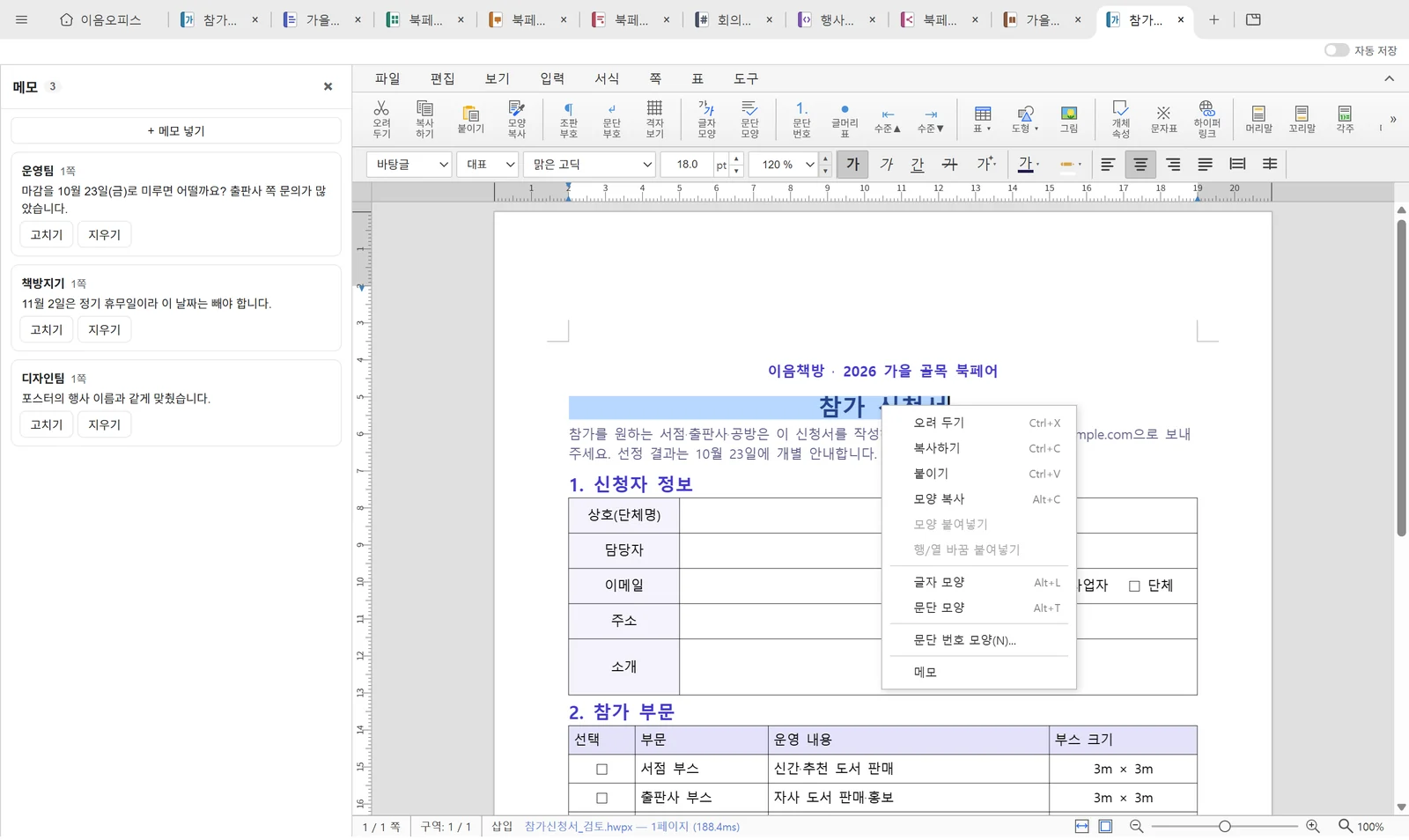
Hangul memos Select text, right-click and choose "Memo" to add a memo at that spot. In the memo pane you read, edit and delete the document's memos. Memos added in Hancom Hangul open as they are and are saved back. The AI assistant only reads memos, and asks first before deleting text that has a memo attached.
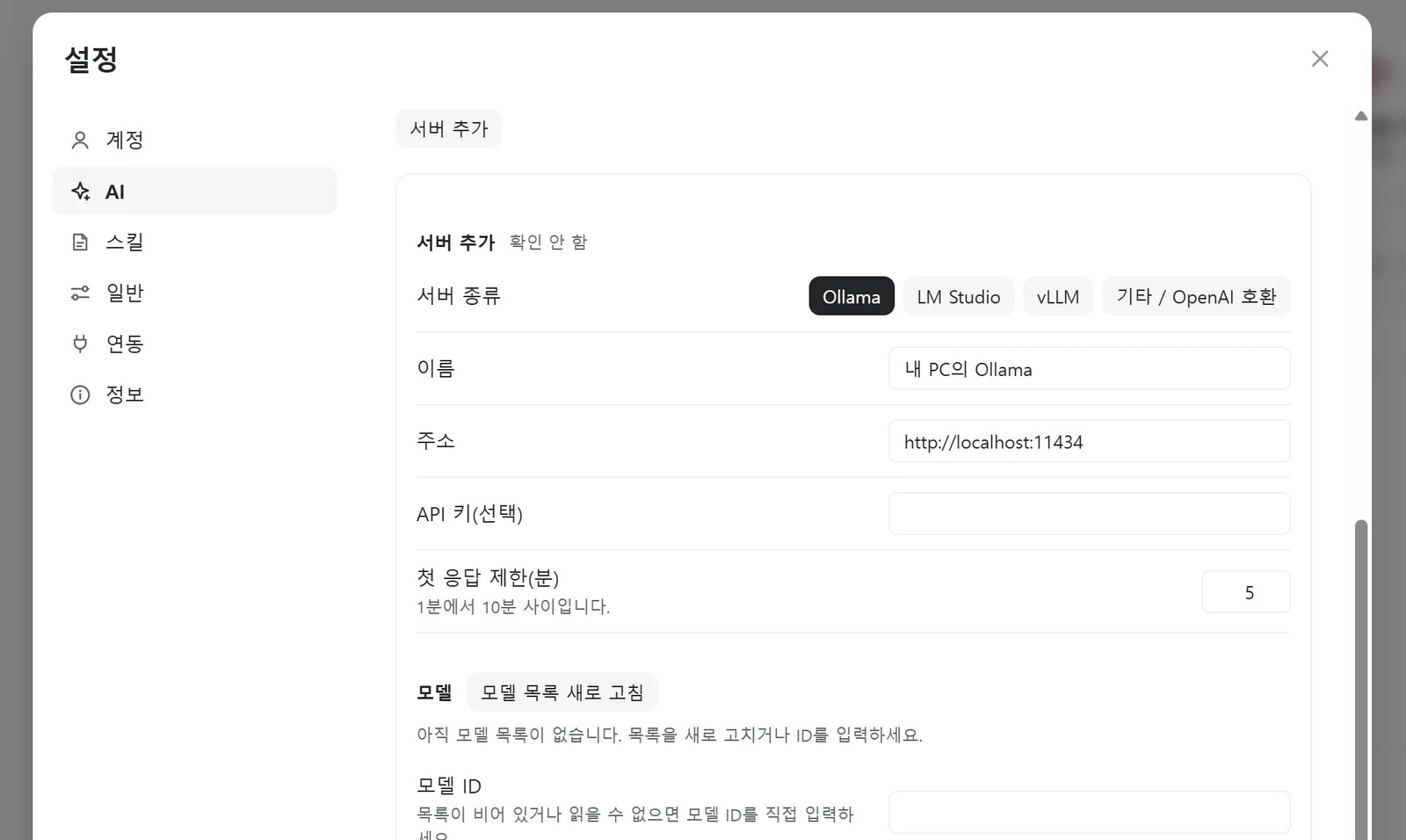
Connecting AI on your PC Under "Local AI" in Settings → AI, register the address of an AI server such as Ollama, and use the connection test to check that it can chat. Registering alone does not change which AI you use; only a server you choose yourself is used. If what you are about to send looks longer than the model can handle, the app asks first, and if the server address is an internet address outside your PC, it tells you the document will go there.
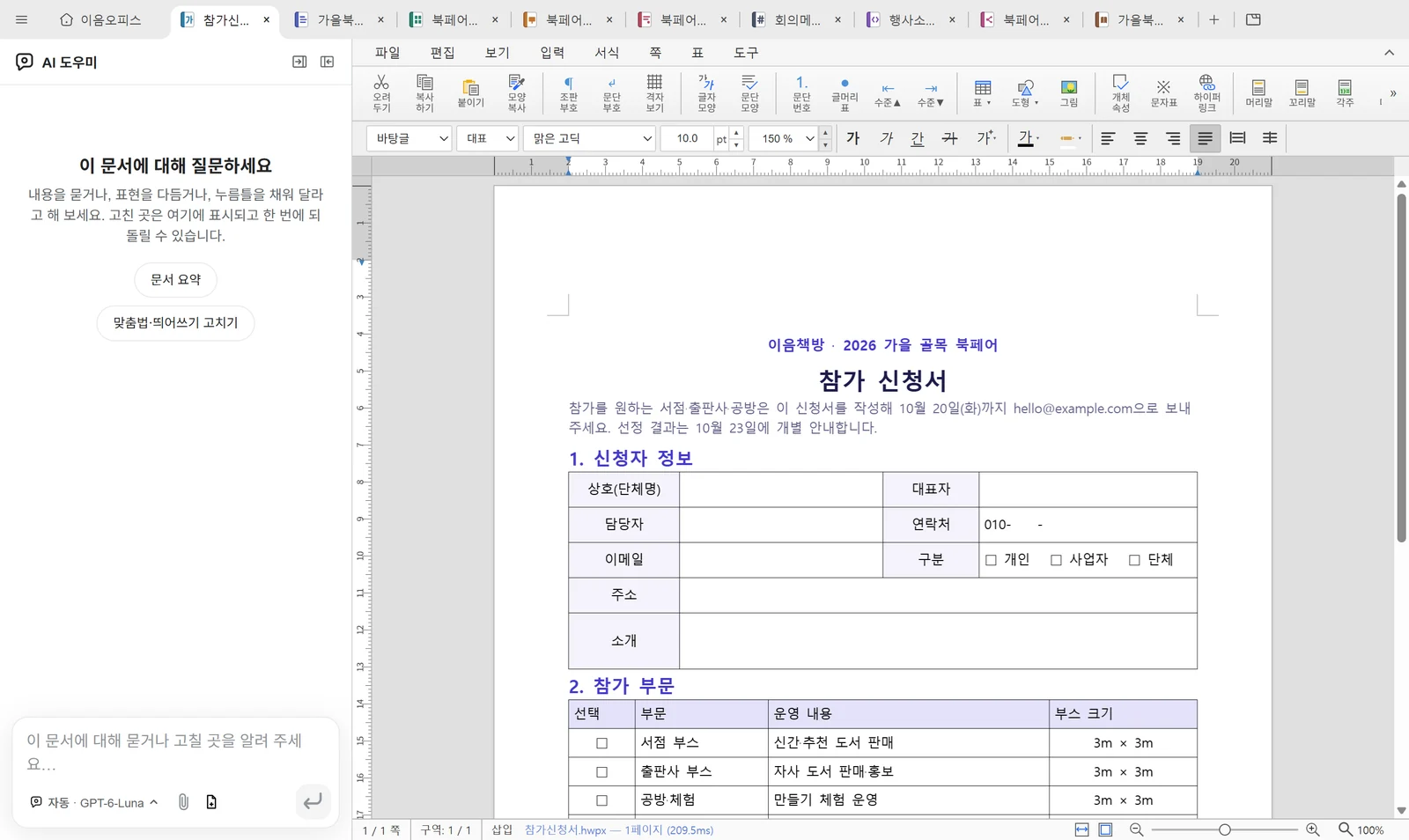
Format copy With Alt+C, choose whether to copy the character shape, paragraph shape or style, and apply it somewhere else. In tables it also copies a cell's borders and fill. As in Hancom Hangul, the copied format stays until you copy again, so you can apply it to several places in a row.
Hangul table shortcuts
In a table cell, Ctrl+Enter adds a row, F5 selects cells, and Ctrl/Shift+arrow keys change row and column sizes. Presentation mode in the Hangul tab opens with Ctrl+F5.
Filling in forms
When the AI fills in a form, it removes the blue italic of the guide text and writes in black. □ boxes are changed to ☑ in place.
PDF and Hangul AutoSave
Turn on "AutoSave" at the top of the screen and your changes are saved to the document file every 30 seconds.
Other editors
Word gained mail merge and comparing two documents, Excel pictures in comments, PowerPoint A4 and portrait slide sizes, and PDF inserting links.
Fixed: Excel sheets with lots of formatting and borders were sluggish; Hancom Hangul could not open Hangul
files with drawn text boxes; text beside a picture in the header disappeared; and F5 in a Hangul table cell
turned on full screen instead of selecting the cell. If an update fails to install, the app tells you the
next time it starts and opens the installer again.
The Hangul tab's shortcuts and features now match Hancom Hangul 2024. Features such as page numbering,
simple table formulas and inserting the date have arrived, and the AI creates and edits styles. A new
editor opens EPUB e-books so you can edit and translate them.
Hangul documents Use common features with the same keys as Hancom: Ctrl+N key sequences, alignment keys, insert date (Ctrl+K,D) and simple table formulas. Page numbers go in with the same look as in Hancom, and you can ask the AI to create or edit styles.
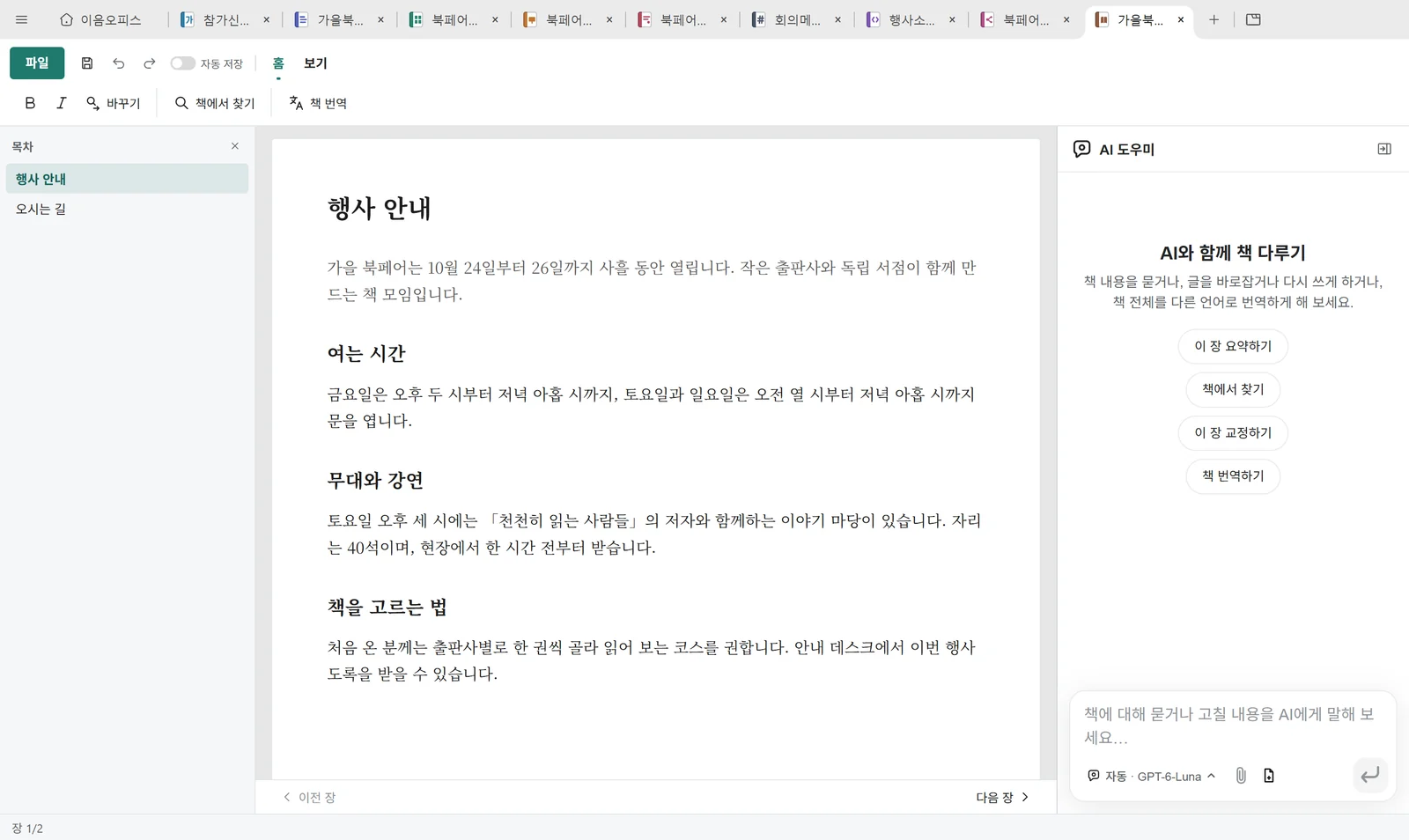
EPUB e-books Open a book file and you see its table of contents and text; click the text to edit it directly. Only the paragraphs you changed are saved again, so the rest of the book stays as it was. Ask the AI assistant to summarize a chapter, or translate the book into another language and save it as a translated file. You can also make a bilingual edition with the original and translation together. Before translating, make sure you have the rights to the document.
Hangul tab shortcuts
Now the same as Hancom Hangul 2024. Ctrl+N key sequences, alignment keys and the file keys Alt+N/O/S/V/P work.
Hangul features
Added page numbering, normal shape, reverse find, simple table formulas (row and column sums, averages, products) and adding rows and columns.
Hangul styles
The AI creates and edits paragraph styles and character styles. It edits without touching the styles already in the document.
Presentation mode and recovery copies
Every editor opens presentation mode with F5, and if the app suddenly closes, your open tabs and split views come back.
Typing in Hangul documents is less sluggish. We fixed getting stuck in the Claude sign-in window and Codex
installed with winget being unable to get out of an update. When converting or translating a PDF to Word,
vertical text in the margins no longer slips into the body, and words at line ends are no longer split.
EPUB does not edit or translate fixed-layout books or books with DRM. Fixed-layout books are read-only.
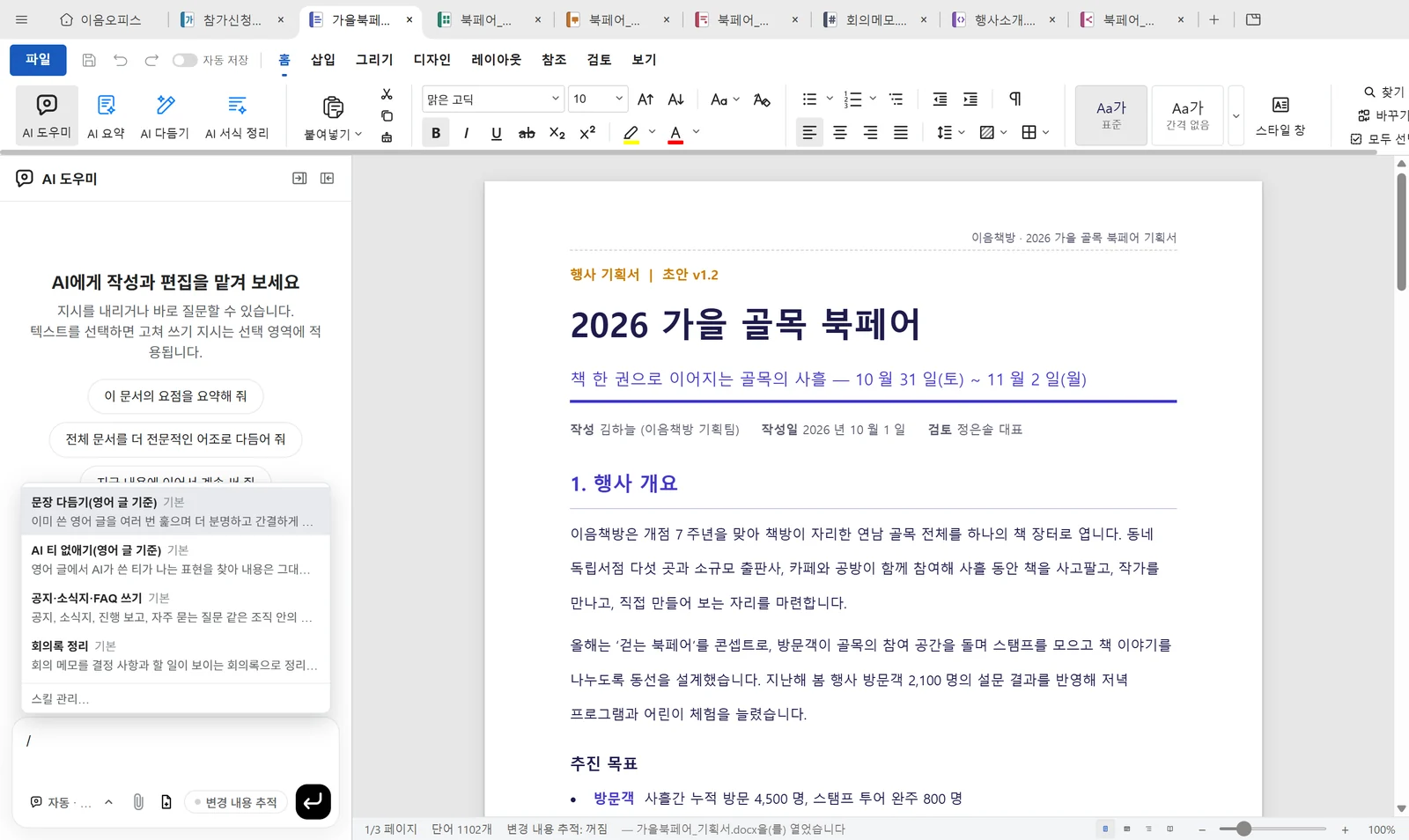
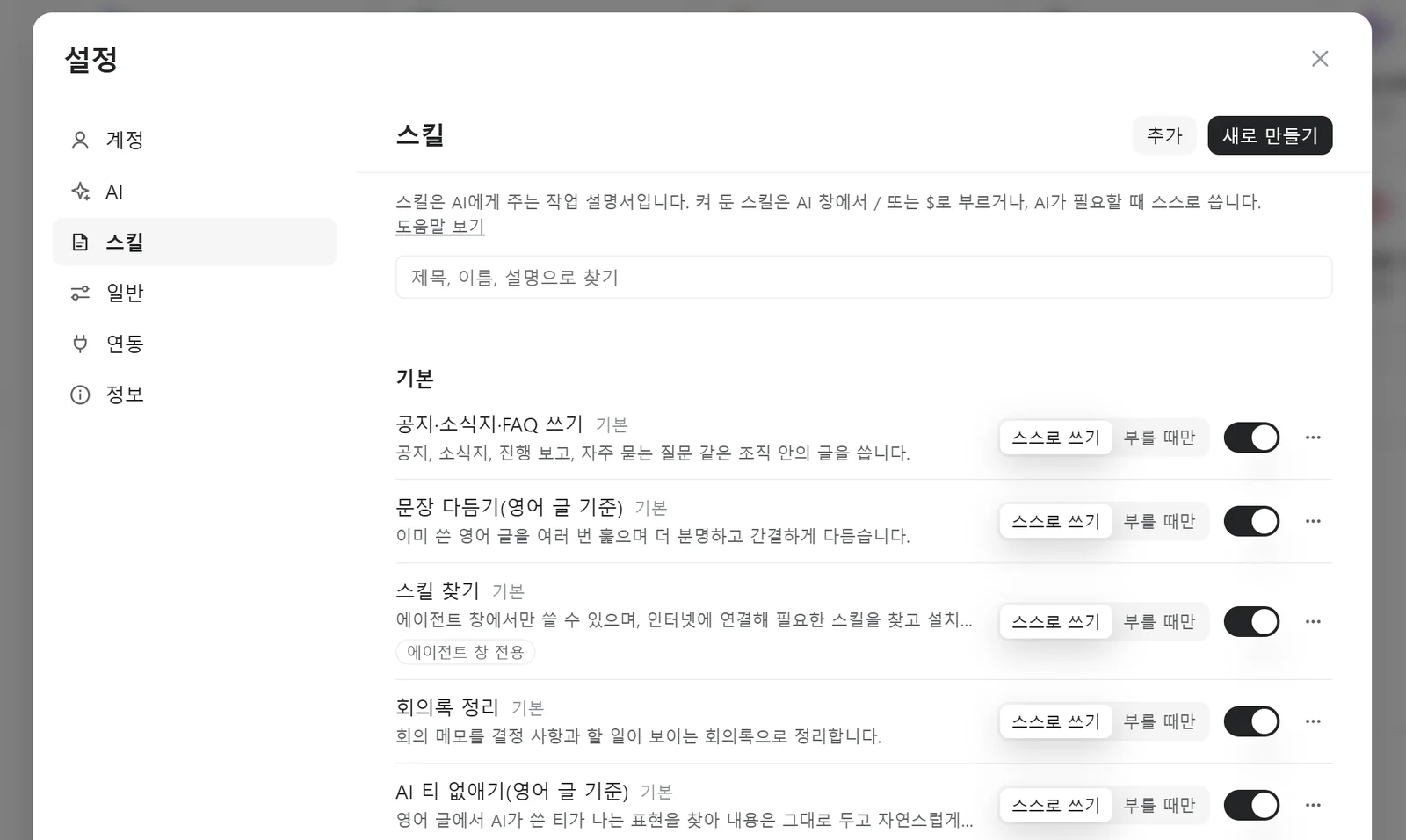
Save tasks you do often, such as tidying meeting minutes or writing notices, as skills and call them up
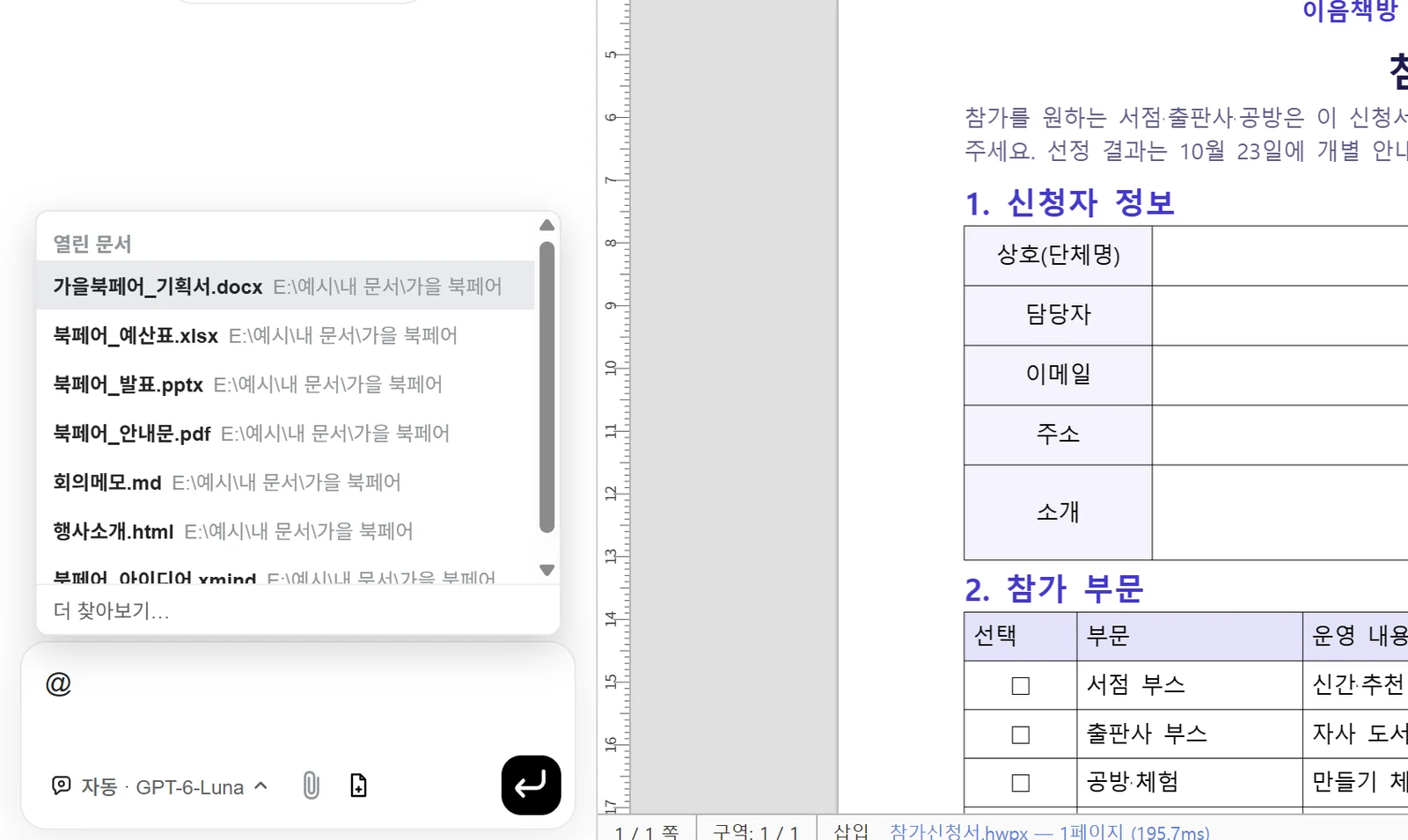
in the AI panel. Type @ in the AI input box to pick an open document and attach it right away. If you
haven't connected an AI yet, the app walks you through connecting one step by step.
Skills A skill is a written set of instructions for a task you hand to the AI. Type / in the AI input box to see the list; the text of the skill you pick goes to the AI along with your question. Built in are skills for tidying meeting minutes, writing notices, newsletters and FAQs, and two for polishing English writing.
Making your own skills In Settings → Skills, create or add skills and turn them on or off. After finishing a task with the AI, say "make what we just did into a skill" and it first shows what it will save, then saves it once you confirm. If you add the current document as a template, the next time you use that skill a copy of the template opens in a new tab.
Attaching documents with @ Type @ in the AI input box to see open and recent documents; pick one and it is attached right away. You don't have to stop writing your question to look for the attach button.
AI connect guide
If no AI is connected, the app first asks which AI you already use, then guides you through just that one, from installation to sign-in.
Choosing the Hangul save format
In "Save As", choose HWP or HWPX.
Several PDF pages at once
In the thumbnails on the left, hold Ctrl or Shift to select several pages, then rotate, delete, save separately or move them in one go.
Growing slide text together
In PowerPoint, select several text boxes and press "Increase/Decrease Font Size", and the text in all the selected boxes changes together.
File icons were redrawn. We fixed title boxes, pictures and footnotes overlapping body text in Hangul
documents, and prevented the original file from becoming empty when you edit and save an Excel file.
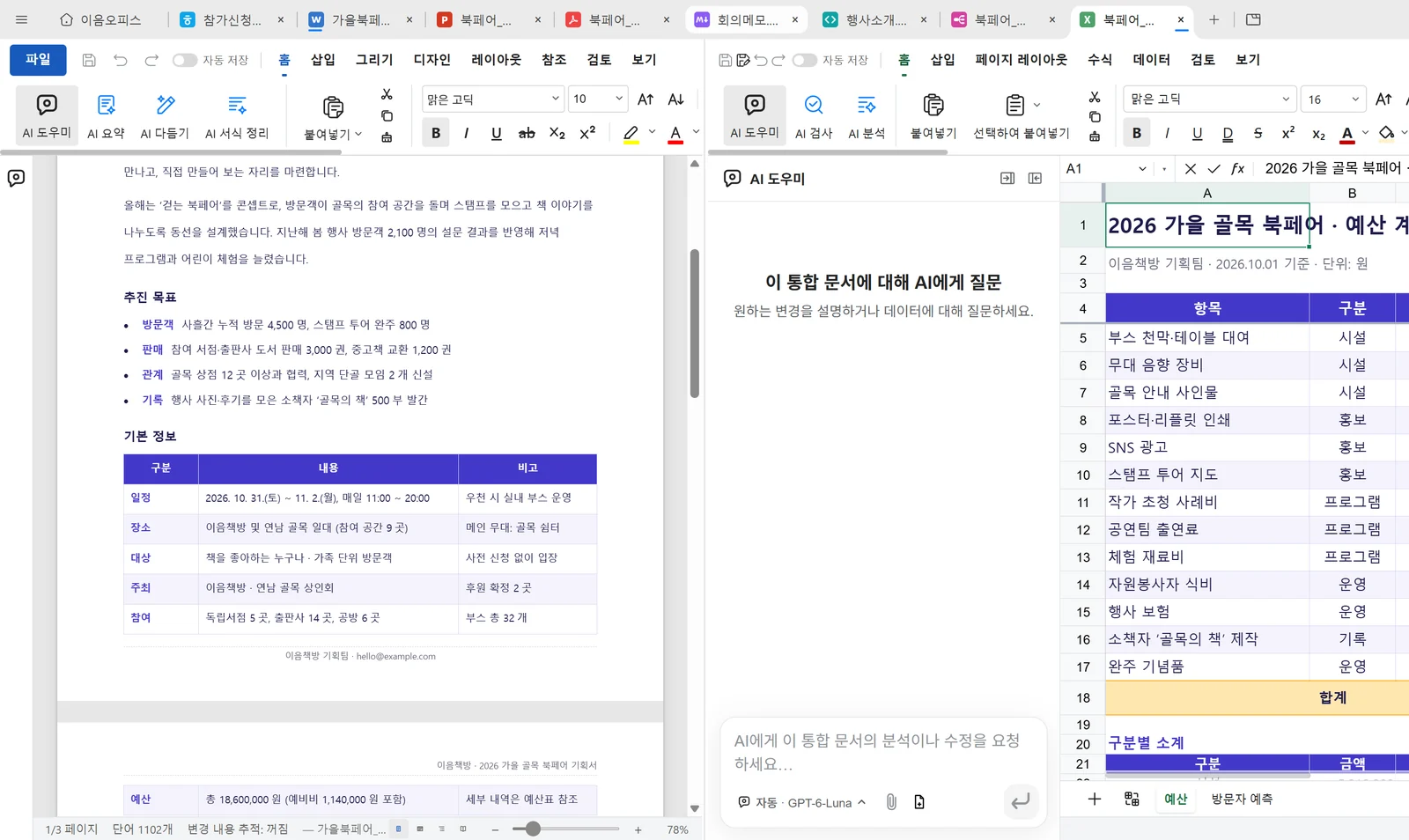
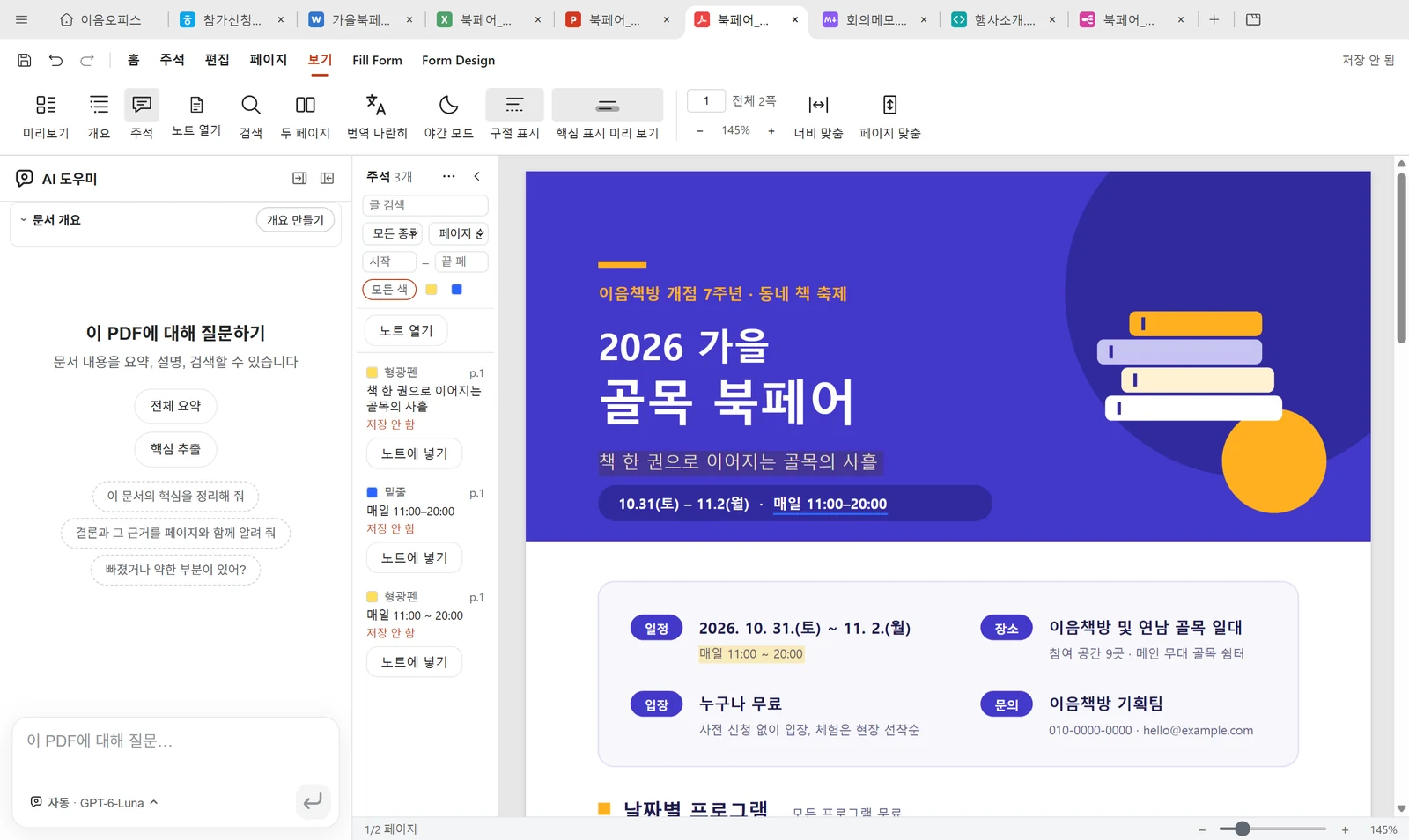
Split the screen in two to see two documents together. While reading a PDF you can leave highlights,
underlines and notes and see them all in one place, and you can preview a file's content with just the
space bar, without opening it.
Split view Drag a document tab to the right edge or bottom edge of the window and drop it, and the screen splits in two. You can also right-click a tab and choose "Split Right". Only one AI panel opens, and it works on the document in the side you are looking at.
PDF highlights and notes Select text and press H to highlight, U to underline, or N for a note. Marked spots gather in the list beside it, so they are easy to find again. For documents in another language, you can read an AI translation next to the original.
Space bar preview Select a file in the file list and press the space bar to see its content without opening it. While IeumOffice is running, this works in Windows File Explorer too.
Showing open documents to the AI
Pick a document you have open or opened recently and attach it in the AI panel. No need to look for the file again.
The AI reads links
Include a web address in your question and the AI reads that page before answering.
All slide comments in one view
See the comments on a PowerPoint file across all slides at once. The AI can read the comments and answer too.
Opening password-protected files
Open a password-protected Excel or PowerPoint file and you are asked for the password instead of seeing a blank screen. The same password is set again when you save.
Choose a folder to work in, and the AI reads and edits the files in that folder together with your open
documents. It runs on Claude Code or Codex installed on your PC. ODT, the LibreOffice document format,
now opens too, and PDF tools such as merge and split are gathered in one window.
Agent mode
Start from "Agent" on the left of Home. You decide whether the AI asks you each time before it runs anything on your PC.
ODT documents
Open an .odt file in the Word editor, edit it, and save it back as .odt.
PDF tools window
Merge, split and rotate PDFs, reduce file size, add or remove passwords, and repair broken files. It uses no AI and sends no files anywhere.
Slide list for web presentations
Open a multi-slide presentation made as a web page (HTML) and you see a list of its slides.
The first public version, which opens and edits Word, Excel, PowerPoint, PDF, Markdown and HTML
documents in one window. AI features run on the Claude or Codex subscription you already have, and if
you have no subscription you can connect a free AI.
Hangul editor
Opens and edits HWP and HWPX documents and saves them in their original format.
Mind map editor
Opens and edits XMind files and saves them to the same file.
Making new documents
Choose material you have, and the AI makes presentations, mind maps and web pages from it.
PDF conversion and translation
Turns PDFs into e-books (EPUB) or Markdown text. The AI can also read the text of scanned pages or translate a whole document.